
Mac users sometimes find unfamiliar applications in their Applications or Downloads folders. If you want to learn How uninstall shotscribus software in mac, first identify the application and confirm its location.
Shotscribus does not have a clearly established official product identity. It should not automatically be considered malware or confused with Shotcut or Scribus.
This guide explains how to check the application, remove it through Finder, review background activity, and identify leftover files. Following these steps can help you remove unwanted software safely without accidentally deleting important macOS system files.
What Is Shotscribus Software?
Understanding an application’s identity is the first step toward removing it safely. Searching for a particular software name may produce different descriptions, but not every online explanation is supported by official documentation.
The name Shotscribus is sometimes discussed alongside Shotcut and Scribus. These are separate software projects, and their similarities in naming should not be considered evidence that they share the same developer or functionality.
Understanding the Shotscribus Name
Shotscribus is an unfamiliar software-related name, but its official developer, product documentation, and download source are not independently established. Therefore, users should avoid assuming it is a legitimate application or confirmed malware.
If you find Shotscribus on your Mac, check its file location, developer information, installation date, and download source. These details can help identify the software.
Is Shotscribus an Official Mac Application?
There is insufficient authoritative evidence to confirm Shotscribus as an officially released Mac application. However, this does not prove that every file using this name is malicious.
macOS includes security features such as Gatekeeper and Apple’s notarization process to help protect users from potentially harmful software. Notarization reduces certain security risks but does not guarantee complete safety.
Before opening unfamiliar software or granting permissions, verify its developer and original download source.
Difference Between Shotcut, Scribus, and Shotscribus
It is particularly important to understand the difference between these names.
Shotcut: Shotcut is a free, open-source, cross-platform video editor. Its official website describes video editing features, audio and video format support, and timeline-based editing. It is available for macOS, Windows, and Linux.
Scribus: Scribus is a separate open-source desktop publishing application. It is designed for creating page layouts and publishing materials such as brochures, newsletters, and other documents.
Shotscribus: The available authoritative information does not establish Shotscribus as an official product of either project.
You should never assume that deleting Shotcut or Scribus is the correct solution when you are searching for Shotscribus removal instructions. First identify the actual application installed on your computer.
Why Should You Check Shotscribus Before Removing It?
Before following How uninstall shotscribus software in mac, investigate the unfamiliar application carefully. Removing software without checking it may delete an application you need, affect important project files, or leave associated background components behind. A few minutes of investigation can make removal safer.
Identify Where the Application Came From
First, check how the application appeared on your Mac. It may have come from the Mac App Store, a developer’s website, or another software download platform.
Open Finder and check the Downloads folder for related DMG or PKG installation files. Remember that deleting an installer does not automatically remove an installed application. Avoid reopening unfamiliar installation files until you verify their source.
Check Its Developer and Digital Signature
Select the application in Finder, right-click it, and choose Get Info. Review its name, file location, and available developer details.
macOS Gatekeeper helps identify applications from recognized developers and checks applicable security requirements. An unidentified developer does not automatically mean an application is malicious, but further investigation is recommended.
Understand the Risks of Unverified Downloads
Applications from unfamiliar websites may include unwanted software, misleading download buttons, or unnecessary installation components.
Check requested permissions before allowing access to personal files or system features. If an unfamiliar application behaves unexpectedly, stop using it until you can verify its purpose and safety.
What to Do Before Uninstalling Shotscribus on Mac
Preparation can prevent accidental data loss and make application removal easier. Before following instructions about how uninstall shotscribus software in mac, complete a few basic checks.
Back Up Important Documents
Before uninstalling an application, save important documents and projects in a separate location. You can use an external drive, iCloud Drive, or another trusted backup service.
Removing an application does not automatically delete every document created with it. However, some files may require the original software or a compatible alternative to open.
Close the Application and Related Processes
Close the application before uninstalling it. Use Command + Q to quit normally.
If it becomes unresponsive, press Option + Command + Esc, select the application, and choose Force Quit. Unsaved changes may be lost.
You can also use Activity Monitor to check for related processes. Avoid terminating unfamiliar macOS system processes.
Check for an Official Uninstaller
Some Mac applications include a dedicated uninstaller. Check the installation folder or application settings for an Uninstall option.
If the verified application provides an official removal utility, use it because it may remove associated components and background items. Avoid downloading uninstallers from unrelated websites.
Make Sure You Have Administrator Access
Some applications require administrator permission for removal. If macOS requests authorization, use an approved administrator account.
Standard user accounts may not have permission to remove applications installed for all users. On workplace or school-managed Macs, contact the administrator if removal is restricted.
How Uninstall Shotscribus Software in Mac Using Finder
Finder is a built-in macOS application that allows users to manage files, folders, and installed applications.
If you have identified the correct application and confirmed that you no longer need it, Finder is usually the simplest removal method.
Open Finder and Locate the Application
Click the Finder icon in your Dock and select Applications from the sidebar. Look for the application you want to remove.
If you cannot find it, press Command + Space, enter its name, and check the Spotlight results. You can reveal its location in Finder using the Command key and the appropriate Spotlight action.
Check the Applications and Downloads Folders
Examine the Applications and Downloads folders for the exact application name. Remember that installation files and installed applications are different. Deleting a DMG installer does not necessarily uninstall the application already installed on your Mac. Confirm that you have located the actual application before removing it.
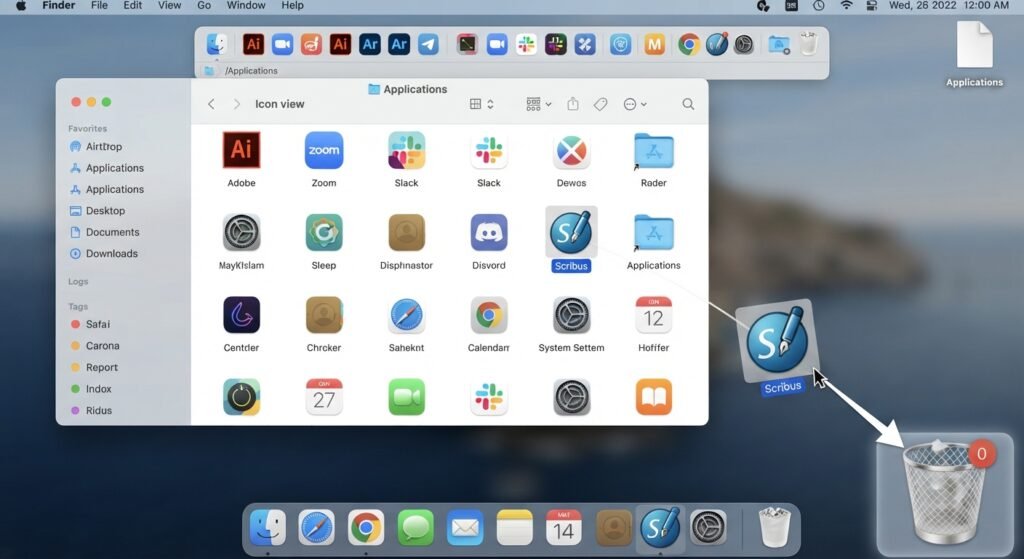
Move the Identified Application to Trash
Once you have confirmed the application’s identity, follow these steps:
- Open Finder.
- Navigate to the application’s location.
- Make sure the application is closed.
- Select the application.
- Right-click and choose Move to Trash.
- Enter administrator credentials if macOS requests them.
You can also drag the application icon into Trash in the Dock. These are standard macOS application removal methods.
Empty Trash After Confirming the Removal
Moving an application to Trash does not permanently delete it immediately. Before emptying Trash, check that you have selected the correct application and preserved any important documents.
If you change your mind, select the application in Trash and use Put Back. When you are confident that you no longer need it, choose Finder > Empty Trash.
Apple explains that emptying Trash permanently removes the deleted application and makes its occupied storage available for other files.
How to Remove Shotscribus-Related Background Activity
Some applications can perform tasks even when their main windows are closed. These activities may include software updates, synchronization, or other background operations. Their presence does not automatically indicate a security problem. The important thing is to identify which application owns the activity.
Check Activity Monitor for Related Processes
Activity Monitor is a built-in macOS utility that displays information about running applications and processes.
To open it:
- Open Finder.
- Select Applications.
- Open Utilities.
- Double-click Activity Monitor.
- Review the available processes.
Use the search field to look for the verified application name or a process that you have independently identified as belonging to it.
Review Login Items in System Settings
Login Items control which applications and other items open automatically when you sign in.
To review them:
- Open the Apple menu.
- Select System Settings.
- Choose General.
- Open Login Items & Extensions.
- Review the Open at Login section.
If you find an entry that you have positively identified as belonging to the removed application, select it and click the Remove button.
Check App Background Activity and Extensions
Applications may install extensions that provide additional functionality in macOS. Open System Settings and navigate to General > Login Items & Extensions.
Review the available extension categories and identify entries associated with the application you are investigating.
If an extension clearly belongs to software you have removed, consider disabling it when appropriate.
However, do not disable unknown extensions without investigating them. Some belong to legitimate applications, hardware drivers, or security products.
How to Find and Remove Leftover Application Files
Removing the main application does not necessarily remove every associated preference, cache, or support file. Some applications store additional information in the user’s Library folder.
However, not every file in the Library should be deleted. Only remove items that you can confidently identify as belonging to the application.
Check the Application Support Folder
The Application Support folder contains data used by applications.
To inspect it:
- Open Finder.
- Select Go from the menu bar.
- Choose Go to Folder.
- Enter ~/Library/Application Support/.
- Press Return.
Review the folders carefully. If you find a folder that clearly matches the verified application or developer, investigate its contents before deciding whether it is safe to remove.
Review Preference and Cache Files
Applications may store preferences and temporary information in separate Library locations.
Two common locations are:
~/Library/Preferences/
~/Library/Caches/
Preference files generally store application settings, while cache files contain temporary information that an application may recreate.
Check Relevant Containers and Saved Application State
Some macOS applications use containers to keep application data separate.
You may encounter related information in:
~/Library/Containers/
~/Library/Group Containers/
Another location is:
~/Library/Saved Application State/
These folders can contain data belonging to multiple applications. Do not assume that every folder in these locations is safe to remove.
Avoid Removing Unidentified System Files
Deleting random system files is not a safe way to uninstall an application. Avoid removing unfamiliar items from system Library folders, LaunchAgents, LaunchDaemons, or other protected locations.
These areas may contain components used by macOS and legitimate third-party software. Removing the wrong file could affect system functionality or prevent another application from working.
How to Handle Shotscribus Uninstallation Problems
When following How uninstall shotscribus software in mac, removal may fail because of an active process, insufficient permissions, or an incorrect installation location. Identifying the cause can help you choose the right solution.
Application Cannot Be Moved to Trash
If Finder refuses to move an application to Trash, check whether the program is still running. Close it normally and review Activity Monitor for identifiable related processes.
Also confirm that you selected the actual application rather than an installer or protected system component. macOS prevents users from deleting certain applications that are required by the operating system.
Application Is Still Running in the Background
Sometimes an application remains active even after its main window disappears. Open Activity Monitor and search for the verified process name. If you recognize the process, try quitting it normally.
If it does not respond, Force Quit may be appropriate. After the process stops, return to Finder and try removing the application again.
Permission Denied During Removal
A permission error usually means your account does not have sufficient authorization to complete the action. Check whether you are using an administrator account.
If the computer is managed by an organization, contact its IT administrator if necessary. Avoid changing system-wide permissions or using unfamiliar Terminal commands to force the removal.
Application Reappears After Restarting the Mac
If an application appears again after restarting, investigate the reason. Review Login Items & Extensions and check whether another application is reinstalling or opening it.
Also make sure you removed the installed application rather than only deleting its original installer or shortcut.
An application reappearing does not automatically prove that malware is present. Additional investigation is needed to establish what is happening.
How to Check Your Mac for Potentially Unwanted Software
After learning How uninstall shotscribus software in mac, review your Mac’s installed applications and security settings to better understand its current configuration and maintain system security.
Review Recently Installed Applications
Open Finder and examine the Applications folder. You can sort items by name or other available details to make applications easier to locate.
If you are investigating a recent installation, review the Downloads folder and any available installation records.
Pay attention to developer information, file names, and download sources. An unfamiliar application deserves investigation, but its name alone does not establish that it is dangerous.
Check Browser Extensions and Unwanted Notifications
Web browsers allow users to install extensions that add additional features. However, some extensions may request more permissions than necessary.
Review your installed extensions in Safari or your preferred browser. Remove extensions that you have identified as unnecessary or untrusted.
You should also review website notification permissions. If you previously allowed an unfamiliar website to send notifications, you can revoke that permission through your browser settings.
Run a Security Scan Using a Trusted Tool
macOS includes built-in security protections such as Gatekeeper, notarization checks, and XProtect. These features help prevent untrusted applications from running and protect against known malware.
Keep macOS updated to receive available security improvements. If you need additional protection, consider a reputable security application from a recognized developer.
Review Unexpected Login Items
Open System Settings and navigate to General > Login Items & Extensions. Review applications listed under Open at Login and App Background Activity.
If you identify an entry associated with software you have removed, you can investigate and remove or disable it when appropriate. Do not remove legitimate background services simply because you do not recognize their names.
Read more:Edit Code GDTJ45 Builder Software: A Detailed Review and User Guide
What to Do If You Suspect a Security Problem
An unfamiliar application does not automatically mean that your Mac has been compromised. However, unexpected behavior should be investigated carefully.
Disconnect From the Internet When Appropriate
If you have strong evidence that suspicious software is communicating with an unauthorized service, temporarily disconnecting from Wi-Fi or Ethernet may help limit network communication while you investigate.
This is not necessary for every ordinary application removal. If your Mac belongs to an organization, contact its IT administrator before taking actions that could interfere with security or device management.
Avoid Entering Sensitive Information Into Suspicious Apps
Do not enter passwords, payment information, or other sensitive details into an application that you cannot identify or trust.
Be cautious when unfamiliar programs request access to personal documents, contacts, cameras, or microphones.
Review permissions before approving them. If an application displays unexpected security instructions, avoid following them until you have verified their source.
Change Important Passwords From a Trusted Device
If you entered sensitive information into an application or website that you now believe was fraudulent, consider changing the affected passwords. Use another trusted device if you suspect your Mac may be compromised.
Prioritize important accounts, including email, financial services, and accounts that can be used to reset other passwords.
Enable two-factor authentication where available. If you notice unauthorized financial transactions, contact your financial institution.
Contact Apple Support or a Qualified Technician if Necessary
Some software problems require professional assistance. If an unfamiliar application repeatedly returns, unexpected security alerts continue appearing, or you cannot identify the source of unusual activity, seek qualified technical help.
Apple Support can assist with macOS-related problems, while a reputable security professional can investigate suspected malware.
Avoid random online instructions that recommend disabling built-in security protections or deleting system files.
How to Keep Your Mac Safe After Removing Suspicious Software
Preventing unwanted installations is an important part of maintaining a secure Mac. How uninstall shotscribus software in mac and following safe downloading practices can help reduce the chances of encountering unfamiliar software in the future.
Download Applications From Trusted Sources
Prefer the Mac App Store or the official website of the software developer. Before downloading an application, verify the developer’s identity and check whether the website matches the actual software project.
Avoid advertisements that imitate genuine download buttons. If a website offers software without clear documentation, investigate it before downloading.
Keep macOS and Applications Updated
Software updates provide security improvements, bug fixes, and compatibility changes. To check for macOS updates, open System Settings and select General > Software Update.
Install updates through Apple’s normal update process. Keep frequently used applications updated through their official update mechanisms. Avoid downloading update packages from unfamiliar websites.
Review App Permissions Regularly
macOS allows users to manage application access to certain personal information and system features. Review the Privacy & Security settings periodically.
Pay attention to permissions involving files and folders, the camera, microphone, location, and other sensitive resources.
If an application requests access that does not match its purpose, investigate before granting permission. Remove permissions that are no longer needed.
Avoid Unknown Installers and Misleading Download Buttons
Some websites display multiple download buttons, and not all of them lead to the advertised software.
Read download pages carefully before selecting anything. Check the installer name, developer details, and available documentation. Avoid installing additional programs that are unrelated to your original download.
These simple habits can help you manage applications more confidently and reduce unnecessary software installations.
Final Verdict
Removing unfamiliar applications from a Mac starts with identifying the software correctly. Although users search for How uninstall shotscribus software in mac, there is insufficient authoritative evidence to establish Shotscribus as an official application or confirmed malware.
For ordinary removal, check for an official uninstaller, close the application, locate it through Finder, and move it to Trash. Review identifiable background activity and leftover files carefully.
Finally, keep macOS updated, download applications from trusted sources, and review permissions before installing unfamiliar software. These precautions help maintain a safer and more organized Mac.
FAQs About How uninstall shotscribus software in mac
1. Is Shotscribus an Official Mac Application?
There is insufficient authoritative information to confirm Shotscribus as an official Mac application. It should not be confused with Shotcut or Scribus.
2. How Uninstall Shotscribus Software in Mac Completely?
Check for an official uninstaller first. Otherwise, close the application, locate it through Finder, and move it to Trash. Review identifiable leftover files before emptying Trash.
3. Can I Remove Shotscribus Without Using Terminal?
Yes. Finder allows you to locate applications and move them to Trash. You can also manage startup applications through System Settings.
4. Why Can’t I Move an Application to Trash on Mac?
The application may still be running, or your account may lack permission. Close the program, check your permissions, and restart your Mac if necessary.
5. Does Removing an Application Delete Its Associated Files?
Not always. Documents, preferences, caches, and support files may remain after removing an application.
6. How Can I Check Whether Suspicious Software Is Still Running?
Open Activity Monitor and search for identifiable application processes. Also review System Settings under General and Login Items & Extensions.
7. Should I Use a Third-Party Uninstaller on Mac?
Not necessarily. Finder and official uninstallers are usually sufficient. If you use another tool, choose a reputable developer.